










BigBlueButton + Moodle: Complete Integration Guide (Plugins + LTI)
Learn BigBlueButton + Moodle integration with practical setup paths, cleaner launches, and fewer LMS mistakes. This guide helps IT teams choose the right plugin or LTI flow, protect session quality, and manage recordings with clearer governance. Most Moodle failures are not caused by the course page. They happen when real-time media, routing, server headroom, and recording workflows are treated as an afterthought. A stable BigBlueButton Moodle deployment needs clear ownership of WebRTC performance, access control, and storage policy. For schools and training teams, the integration question is larger than connecting a button. You need reliable room creation, role mapping, attendance visibility, and a predictable answer to how to record BigBlueButton meetings without overloading teachers or admins. That matters even more when teams ask how do you record in BigBlueButton, how to view recorded conferences, or where do I find conference recordings on BigBlueButton after class. Moodle plugins and LTI both work, but they serve different governance models. Plugin-based setups can feel familiar inside the LMS, while LTI 1.3 can simplify cross-platform consistency, SSO alignment, and future expansion into Canvas, Blackboard, or other LMS integration patterns without inventing new product features. This page also covers recording on BigBlueButton, download expectations, retention, and the practical meaning of canvas BigBlueButton recording workflows so IT teams can support faculty who need to share a recording from BigBlueButton into Moodle or Canvas in a controlled way. Primary keyword: BigBlueButton Moodle integration guide. Secondary keywords: BigBlueButton LTI, Moodle BigBlueButton plugin, Moodle BigBlueButton LTI 1.3, BigBlueButton recording in Moodle, LMS webinar hosting. Supporting keywords used across this page include Moodle virtual classroom setup, OIDC SSO for LMS, SAML LMS access, attendance reports, recording sync, WebRTC classroom routing, concurrent user sizing, managed BigBlueButton hosting, BigBlueButton recording download, Canvas LTI sharing. A BigBlueButton Moodle integration is the full operating path that lets Moodle create, join, track, and govern live classes in BigBlueButton through a plugin or LTI connection. It is not only a launch link. It includes identity flow, room permissions, session reliability, and the policy for BigBlueButton recording access after the live class ends. BigBlueButton is a virtual classroom platform built for teaching and training. It is designed around real-time audio, video, presentation sharing, breakout rooms, moderation, and post-session recordings. For Moodle teams, that makes it a natural fit for scheduled live lessons and instructor-led sessions inside an LMS workflow. But software fit does not remove infrastructure risk. When concurrent users rise, every new webcam, screen share, and audio stream increases the load on media routing, TURN services, CPU, storage, and network quality. This is why peak periods such as morning class blocks, enrollment spikes, and exam review sessions expose weak hosting faster than normal days. That is also why recording with BigBlueButton should be treated as an operational workflow, not a button alone. IT teams need a predictable answer to how to record on BigBlueButton, how to save recordings from BigBlueButton, and how to manage access when teachers ask students to review sessions later. Commercial meeting tools can be quick to adopt, but a learning platform usually needs tighter classroom controls, clearer moderator roles, and deeper LMS alignment. BigBlueButton is often chosen when schools want a learning-first experience and more control over delivery patterns, especially when launch rules and recording policy need to fit institutional processes. Schools often ask how many registered users a system can support. For live classes, the useful metric is concurrent users because that is what stresses the media path. Ten thousand total users do not matter as much as the number of active rooms, webcam publishers, screen shares, and recording jobs running at the same time. WebRTC is the live media layer that carries voice, webcams, and screen share. It is sensitive to routing quality, jitter, packet loss, and network changes. That means an LMS launch can look correct while the class still feels unstable if the media path is weak. An LMS integration should match institutional governance. That includes TLS for transport, defined access roles, clear retention windows for BigBlueButton recordings, and an auditable answer for who can view, share, or download a recording from BigBlueButton. For regulated training, access reviews and support logs are just as important as the meeting itself. Before launch, document who can end recording, who can stop recording, how long recordings stay available, and which workflow is used when someone needs to submit a recording from BigBlueButton to another system. Review platform policies here: biggerbluebutton.com/terms. If faculty ask how to record a presentation, how to record on BigBlueButton, or how to record a BigBlueButton meeting inside Moodle, the safest answer is to treat recording as a planned room setting and a governed post-class process. Best practice: name courses consistently, define moderator ownership, avoid recording unnecessary pre-class chatter, and test the full path for BigBlueButton recording download, replay, and faculty visibility before semester launch. For platform capabilities and service guidance, review biggerbluebutton.com/features. Even in a Moodle-focused deployment, teams often support multiple LMS platforms. The phrase canvas BigBlueButton recording usually means the institution wants a reliable way to share or reference a completed BigBlueButton session inside Canvas after a live class. Recording starts from the live class workflow when the room and moderator permissions allow it. IT teams should define the room policy in advance so instructors know when to start and stop recording cleanly. That depends on the configured room behavior and moderator permissions. The practical rule is to test the exact workflow before term launch and document the expected faculty steps. Recordings are usually exposed through the institution’s chosen access workflow after processing. In practice, the answer should be defined by the LMS integration and the recording governance policy. Users view the finished recording through the approved replay link or LMS entry point. The best experience comes from consistent course naming and role-based access rules. If audio was captured in the recording, users listen through the replay workflow provided by the institution. IT teams should verify playback access and retention before publishing the link. Download availability should be treated as a policy decision, not only a technical one. Schools should define who can download, how long files stay available, and what retention rules apply. Stopping a recording controls what is captured, while ending the session closes the live class itself. For cleaner archives, instructors should know exactly when recording begins and ends relative to teaching time. That should follow institutional permissions. The safest approach is a governed workflow: approved replay link, supported LTI path, or a media library process that preserves course access rules. A strong BigBlueButton Moodle deployment is a mix of clean LMS integration, stable WebRTC delivery, and a recording policy that teachers can trust. If you want fewer launch issues and better planning for scale, start with the right hosting model.
BigBlueButton + Moodle: Complete Integration Guide (Plugins + LTI)
What a BigBlueButton Moodle integration really means
What BigBlueButton is and why hosting still decides classroom quality
BigBlueButton vs Zoom, Teams, and Meet from an IT operations angle
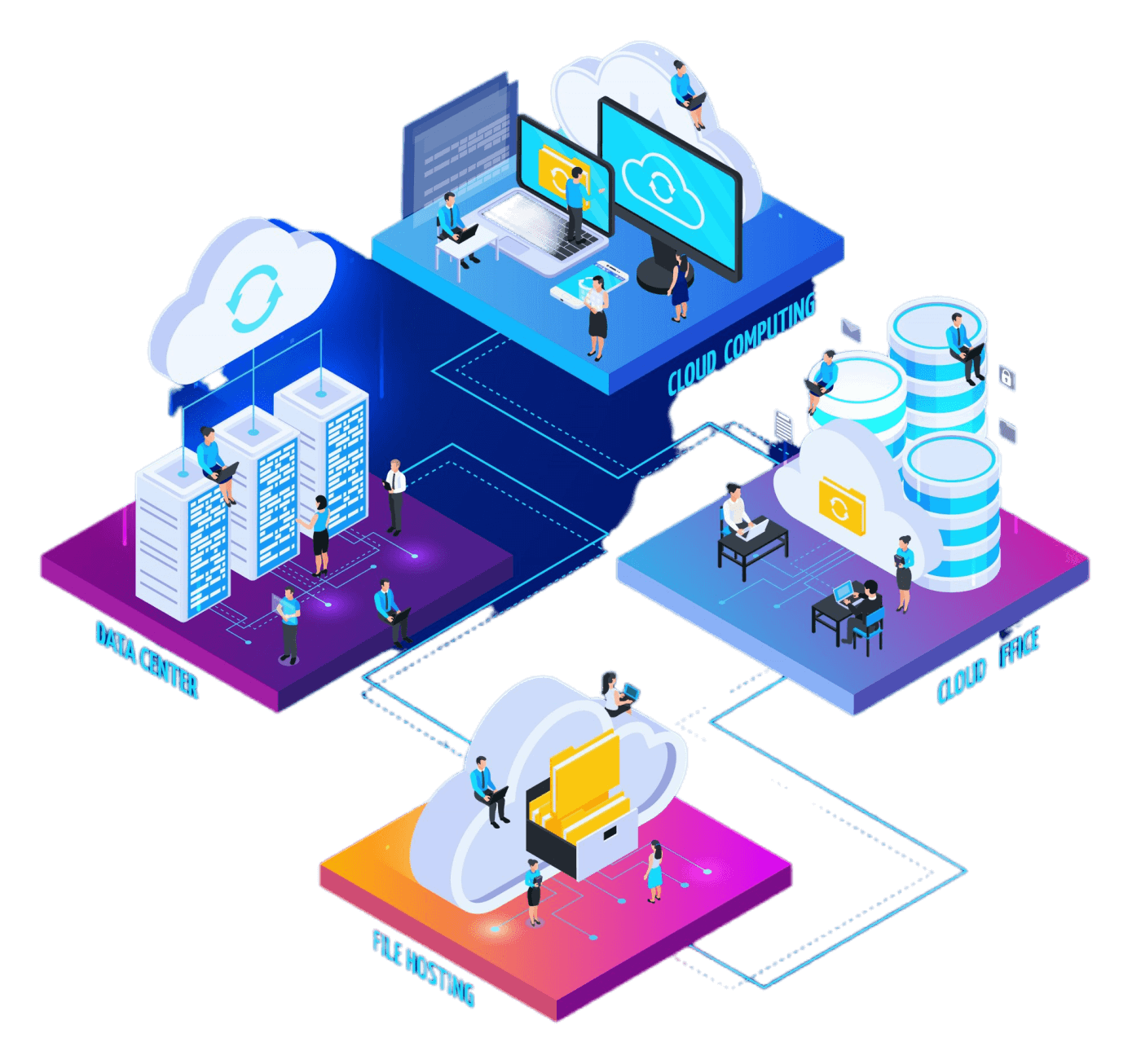
Self-hosted vs managed BigBlueButton for Moodle
Category Self Hosted Managed Deployment Internal team installs, updates, and validates plugin or LTI paths Provider handles core platform operations and launch reliability guidance Scaling Capacity planning, failover, and peak tests stay in-house Better fit when concurrent classes change quickly across terms Support Load Admins own troubleshooting for recordings, routing, and room issues Frees staff to focus on LMS governance, adoption, and faculty enablement Why concurrent users is the right sizing question
WebRTC in plain language for LMS teams
Security, governance, retention, and audit expectations
How to record in BigBlueButton for Moodle classes
What “canvas BigBlueButton recording” usually means
Recommended next links for IT and LMS admins
FAQ
How do you record in BigBlueButton?
Can BigBlueButton enable recording after the conference started?
Where do I find conference recordings on BigBlueButton?
How do users view a recorded conference?
How do you listen to a BigBlueButton recording?
Can users download a recording from BigBlueButton?
What is the difference between stop recording and end recording?
Can students record Canvas conferences or send a BigBlueButton video recording to Canvas?
Make your Moodle launches easier to run and easier to support
