• Home
  • Getting Started
Setup guide About 10 minutes

Your first online class, live in minutes

New to BiggerBlueButton? Follow these seven steps, from creating your free account to sharing your first recording. No servers to set up and nothing to install.

  • Free plan, forever
  • Nothing to install for participants
Step by step

From sign-up to your first recording

Each step shows the screen you will see and where to find it in your dashboard.

Step 1 of 7

Create your free account

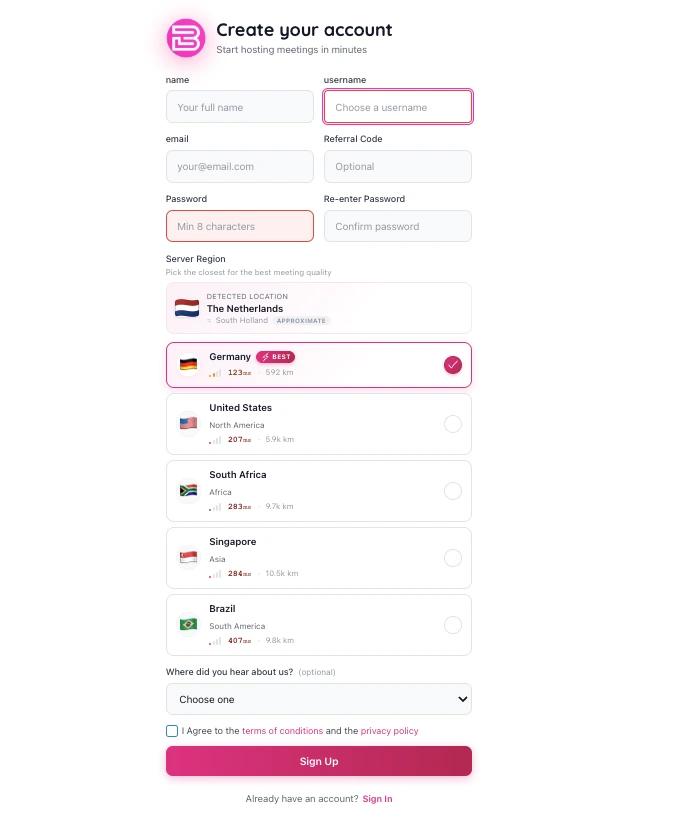
Sign up with your email, or with Google or Microsoft. The free plan never expires, so you can explore at your own pace and upgrade only when you need more.

  • Verify your email to unlock every feature.
  • Pick the server region closest to you for the best meeting quality.
  • Turn on two-factor authentication from your profile for extra security.
Where to find it Sign Up › Dashboard
Step 2 of 7

Tour your dashboard

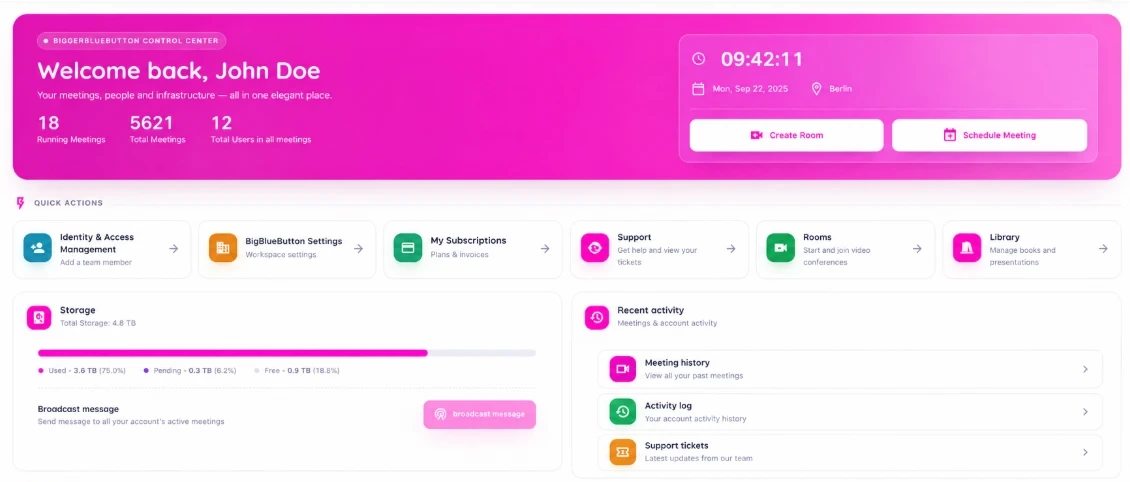
Signing in takes you to your control centre. Your key numbers sit at the top and everything else is one click away, so you always know where to start.

  • Live counters show running meetings, total meetings and participants.
  • Create a room or schedule a meeting straight from the welcome banner.
  • Quick actions open rooms, settings, support and the library in one click.
Where to find it Dashboard
Step 3 of 7

Create your first room

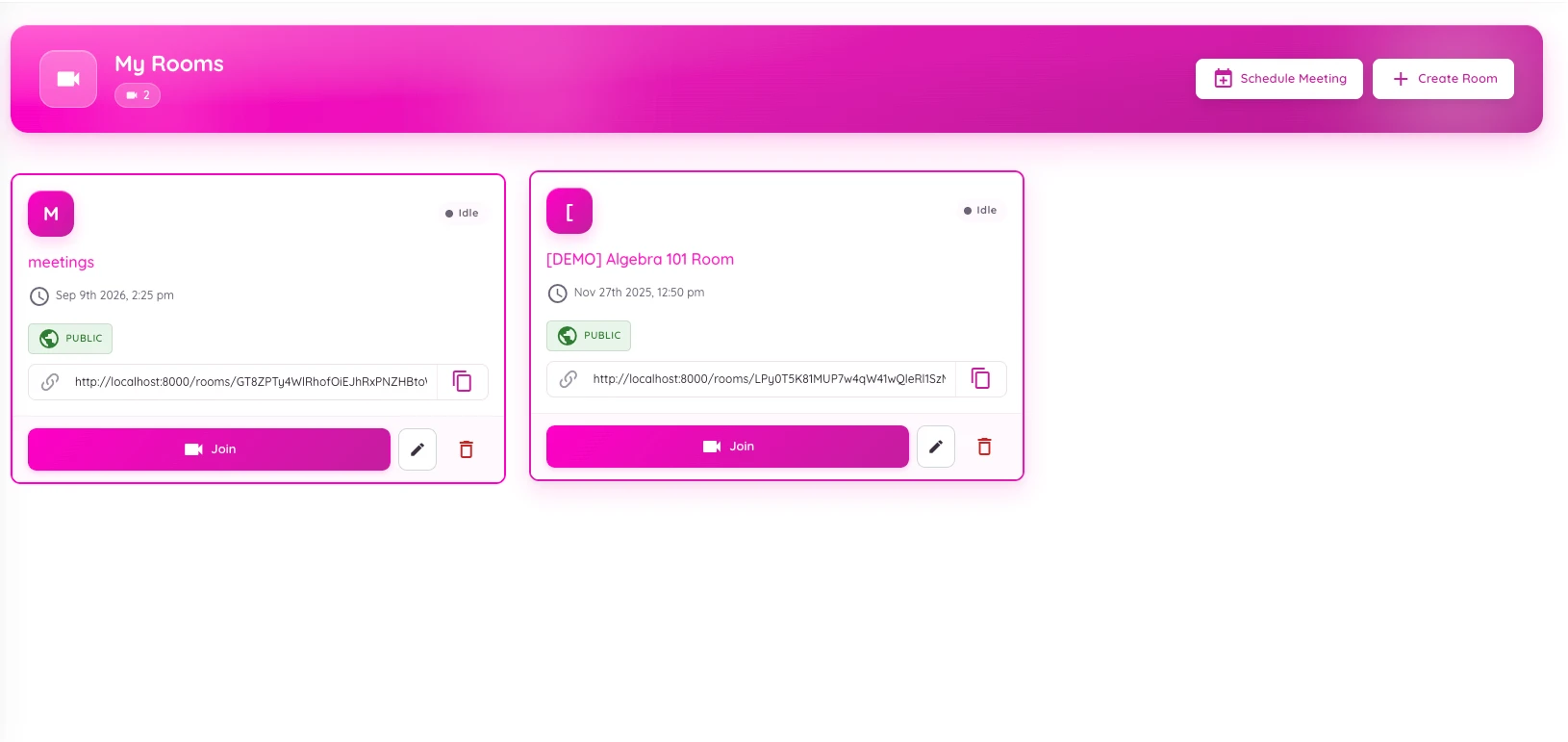
A room is your permanent online classroom or meeting space. It keeps the same link every time, so you can share it once and reuse it for every session.

  • Give the room a clear name, such as "Algebra 101" or "Weekly team sync".
  • Turn on "Wait for moderator" so nobody starts before you arrive.
  • Add members and choose who joins as a moderator or as a viewer.
Where to find it Video Conference › Rooms › Create Room
Step 4 of 7

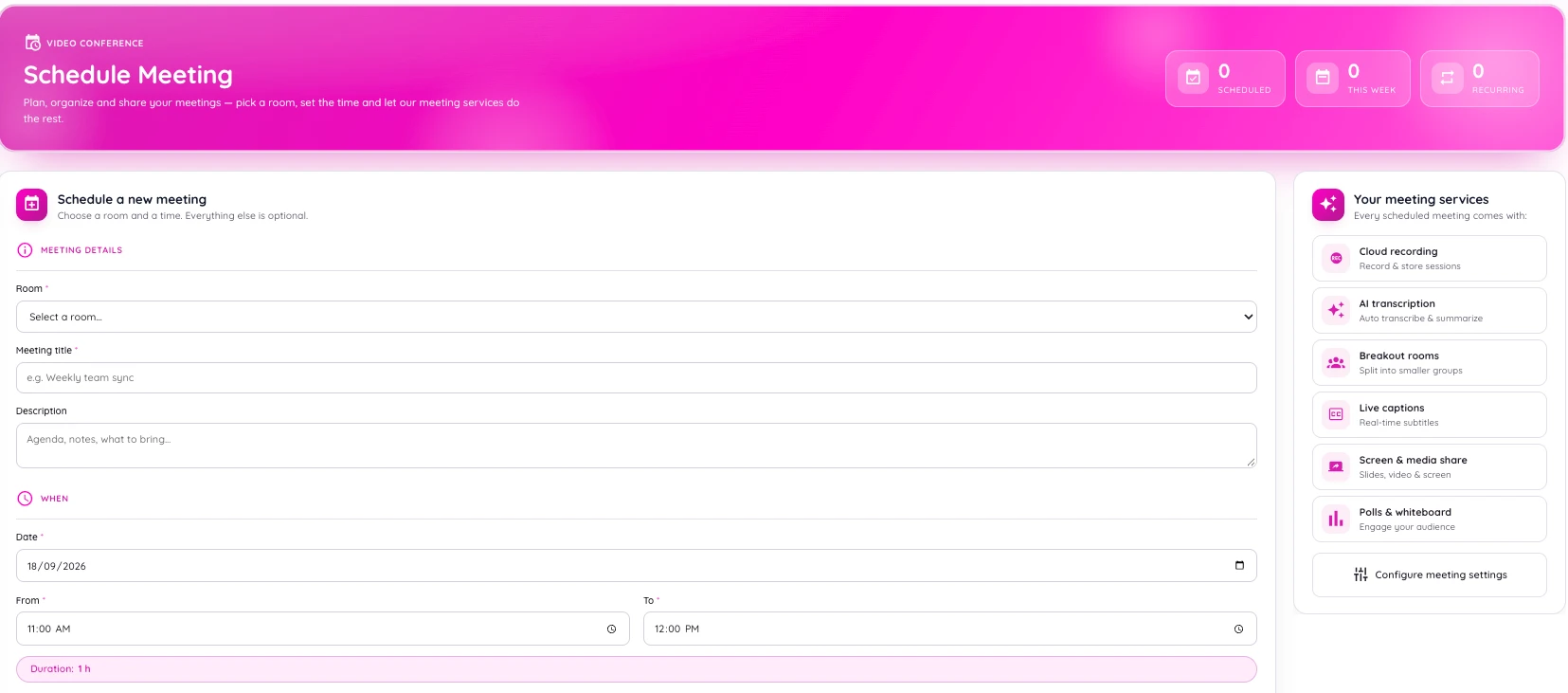
Schedule a meeting and invite people

Pick a room, a date and a time. Invitees get an email with the meeting link and an add-to-calendar button, so the session lands straight in their calendar.

  • Type email addresses and press Enter to invite several people at once.
  • Make it recurring for classes that happen every week.
  • Or just copy the room link and send it however you like.
Where to find it Video Conference › Schedule Meeting
Step 5 of 7

Go live

Press Join on your room card and you are in. Participants open the link in any modern browser, on a computer or a phone, with no downloads and no account needed.

  • Share your screen, upload slides or use the whiteboard.
  • Run polls, breakout rooms and shared notes to keep people engaged.
  • Press the record button when you want the session saved.
Where to find it Video Conference › Rooms › Join
Step 6 of 7

Find your recordings and AI summaries

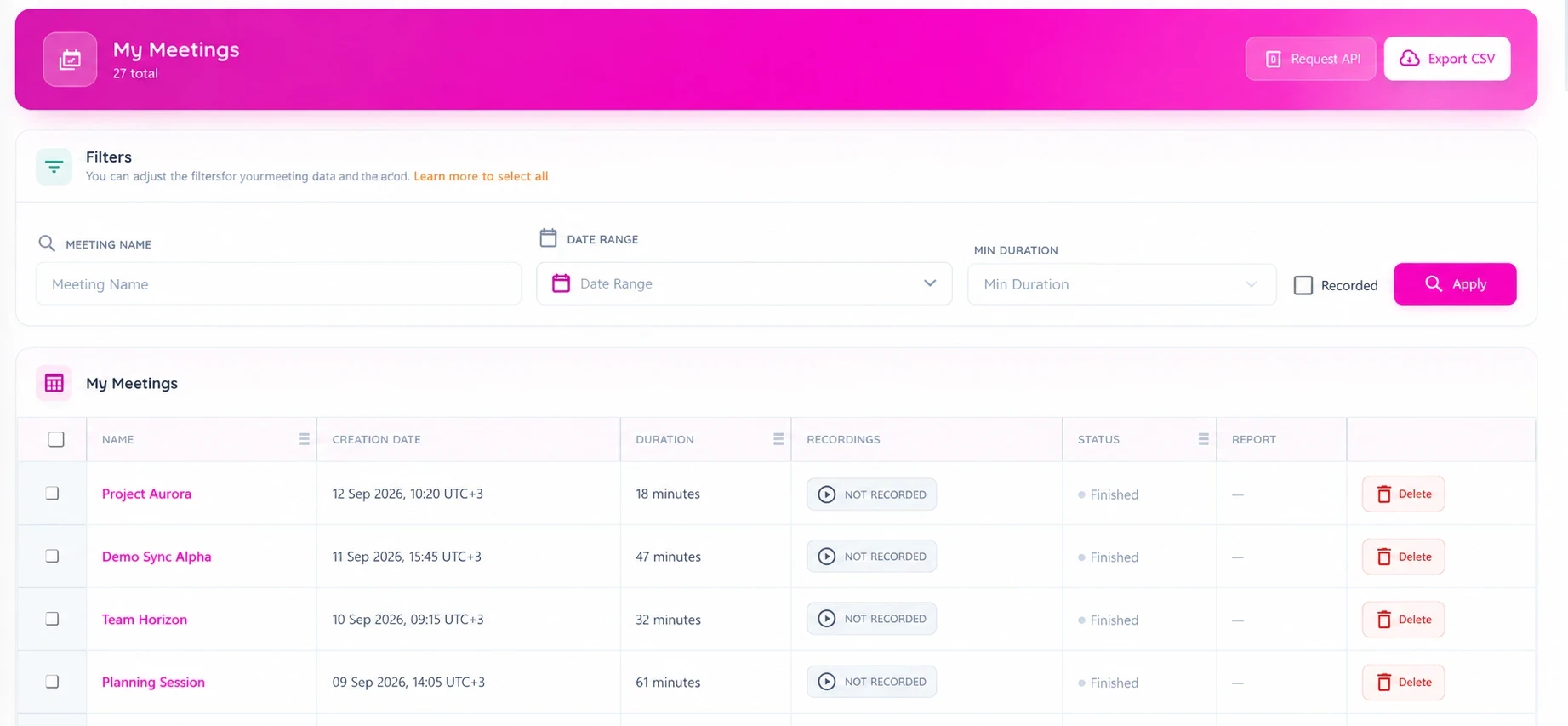
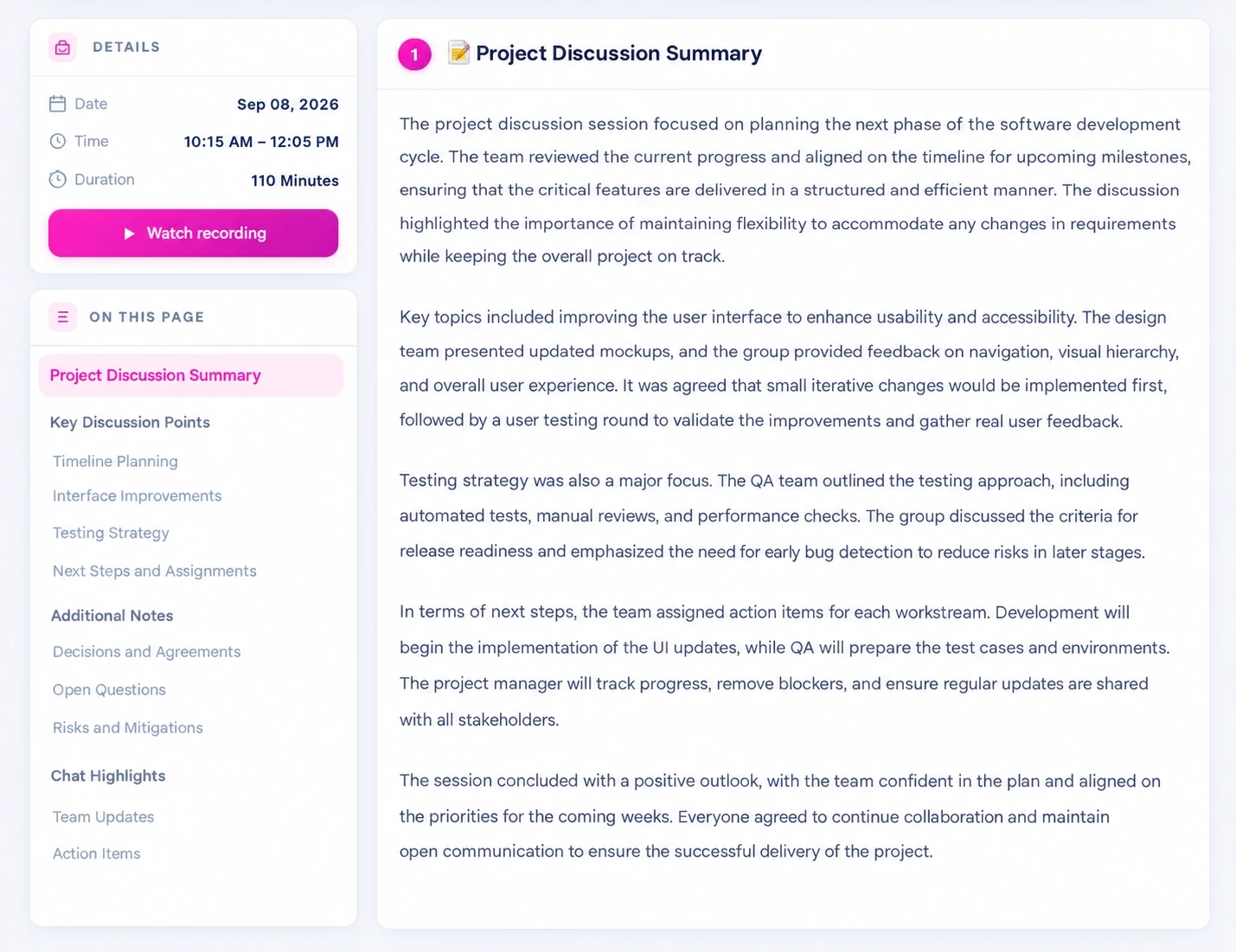
Every session is logged in Meeting History with its duration, attendance and recording. Turn on AI summaries and you also get the key points and action items, ready to share.

  • Download recordings, including as MP4, or share a playback link.
  • Open the learning dashboard to see who talked, chatted and voted.
  • Export your meeting list to CSV for reports.
Where to find it Video Conference › Meeting History
Step 7 of 7

Make it yours

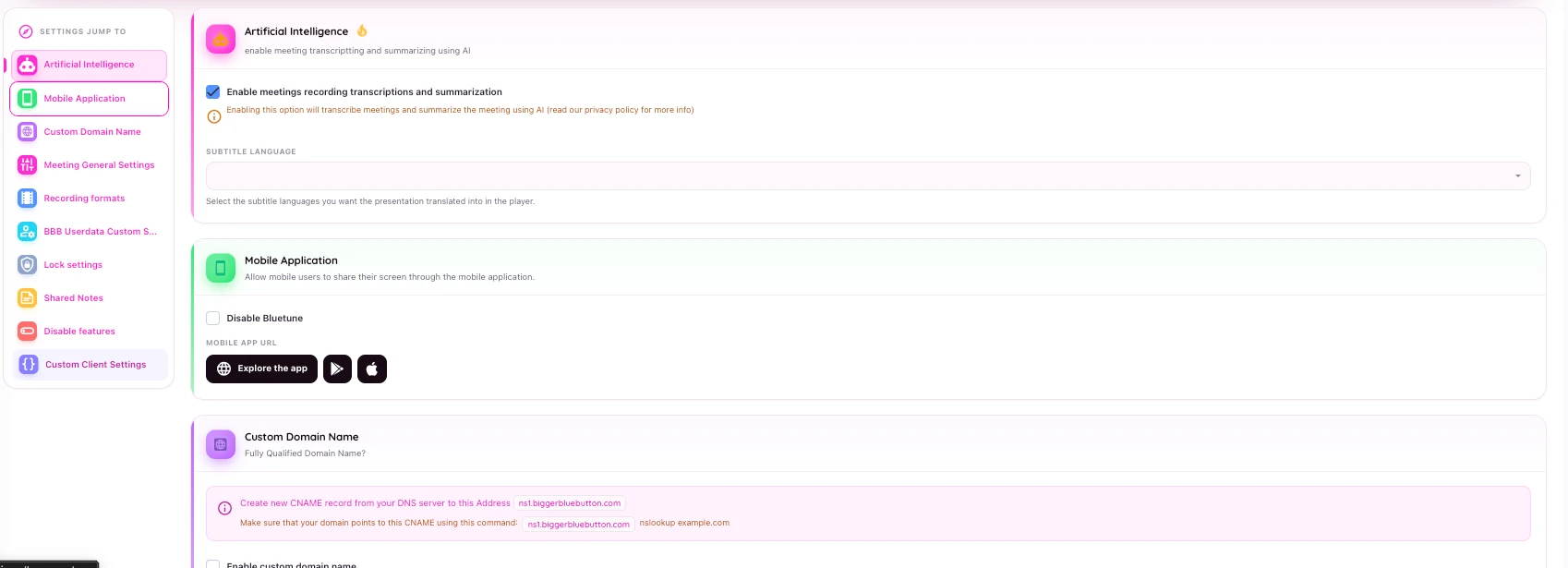
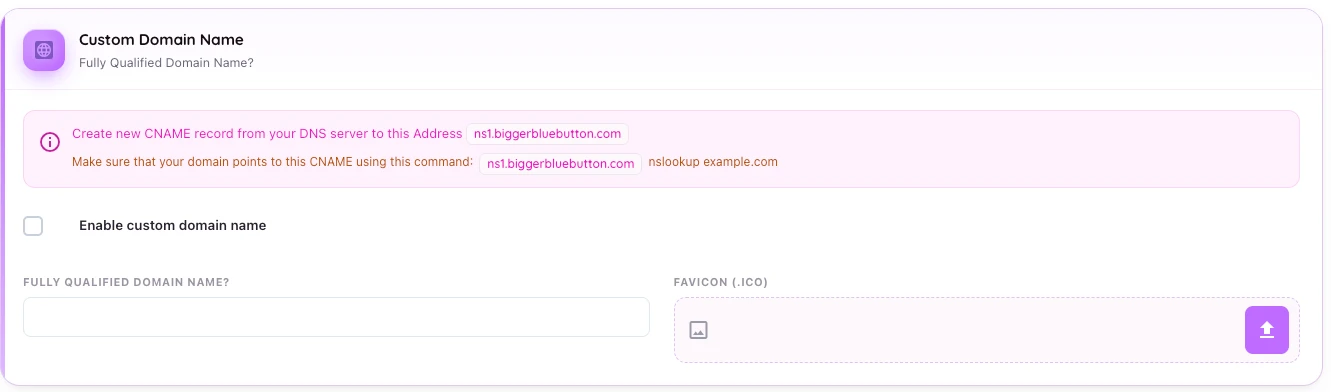
Fine-tune BigBlueButton from one settings page: recording formats, lock settings, AI transcription, the mobile app and your own custom domain, all without touching a server.

  • Add a custom domain so the meeting link carries your brand.
  • Choose default recording formats and lock settings for every room.
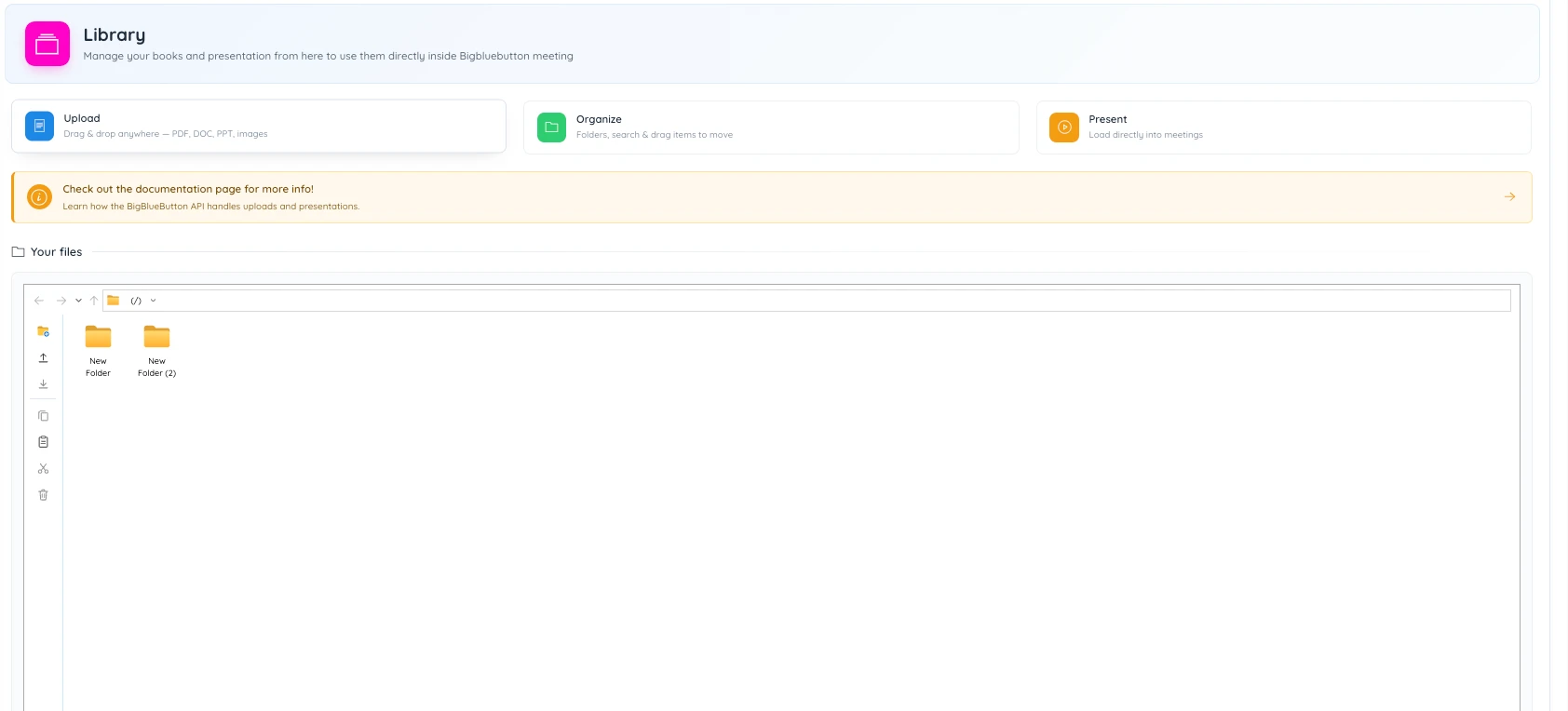
  • Upload slides and videos to the Library to reuse them in any meeting.
Where to find it Settings › BigBlueButton Settings

That is it: you are ready to teach

Your room, your link and your recordings are all set up. Everything else is optional.

Start Free
Go further

When you are ready for more

Optional extras that save time once your first sessions are running.

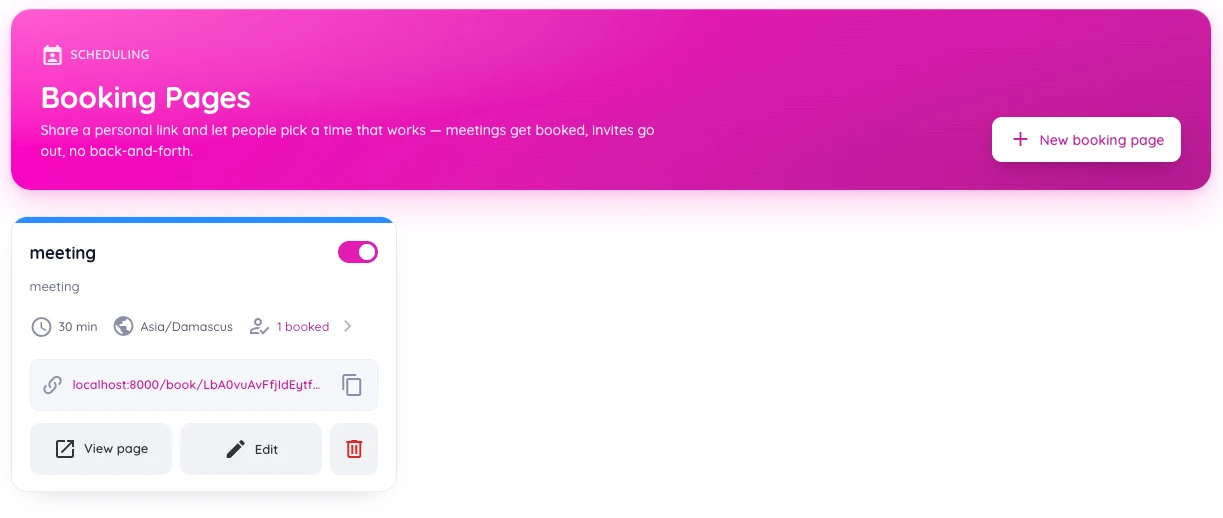
Booking pages

Share a personal link and let people book a time with you. Invites go out automatically.

Content library

Keep presentations, videos and documents in one place and open them in any meeting.

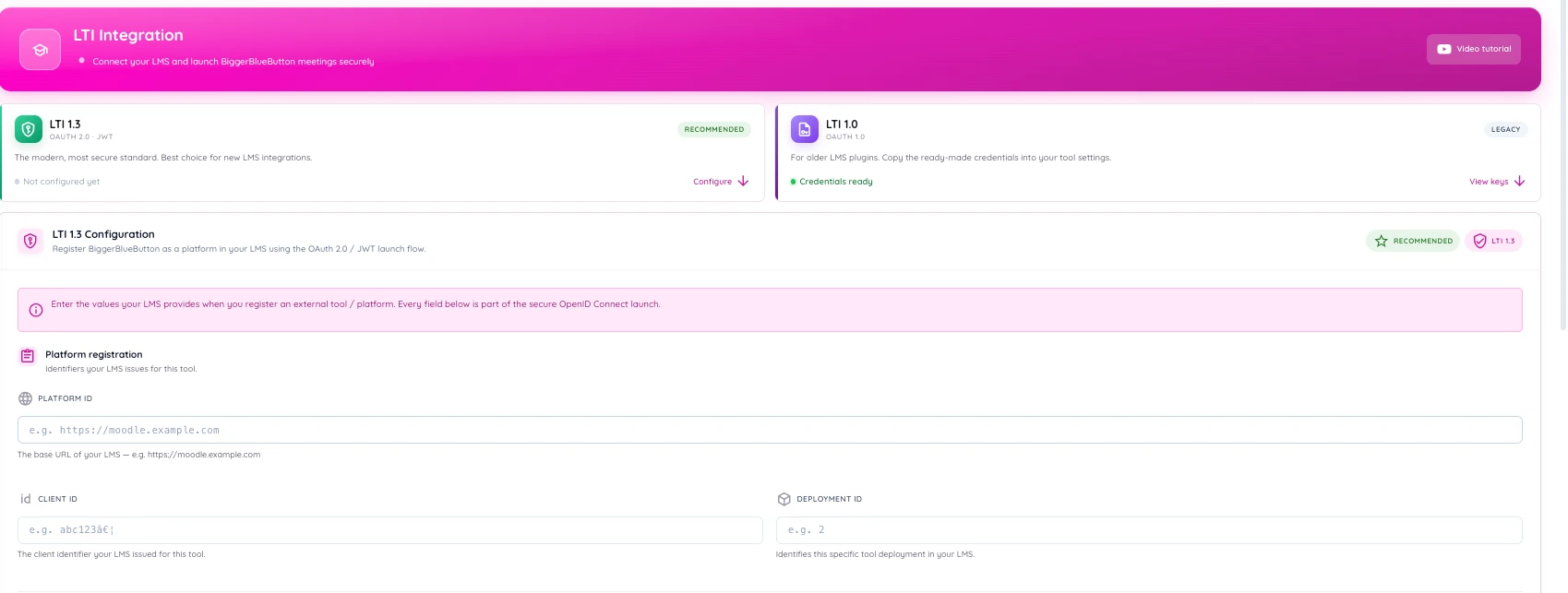
Moodle and your LMS

Connect Moodle, Canvas or Blackboard with LTI 1.3, or build your own integration with our API.

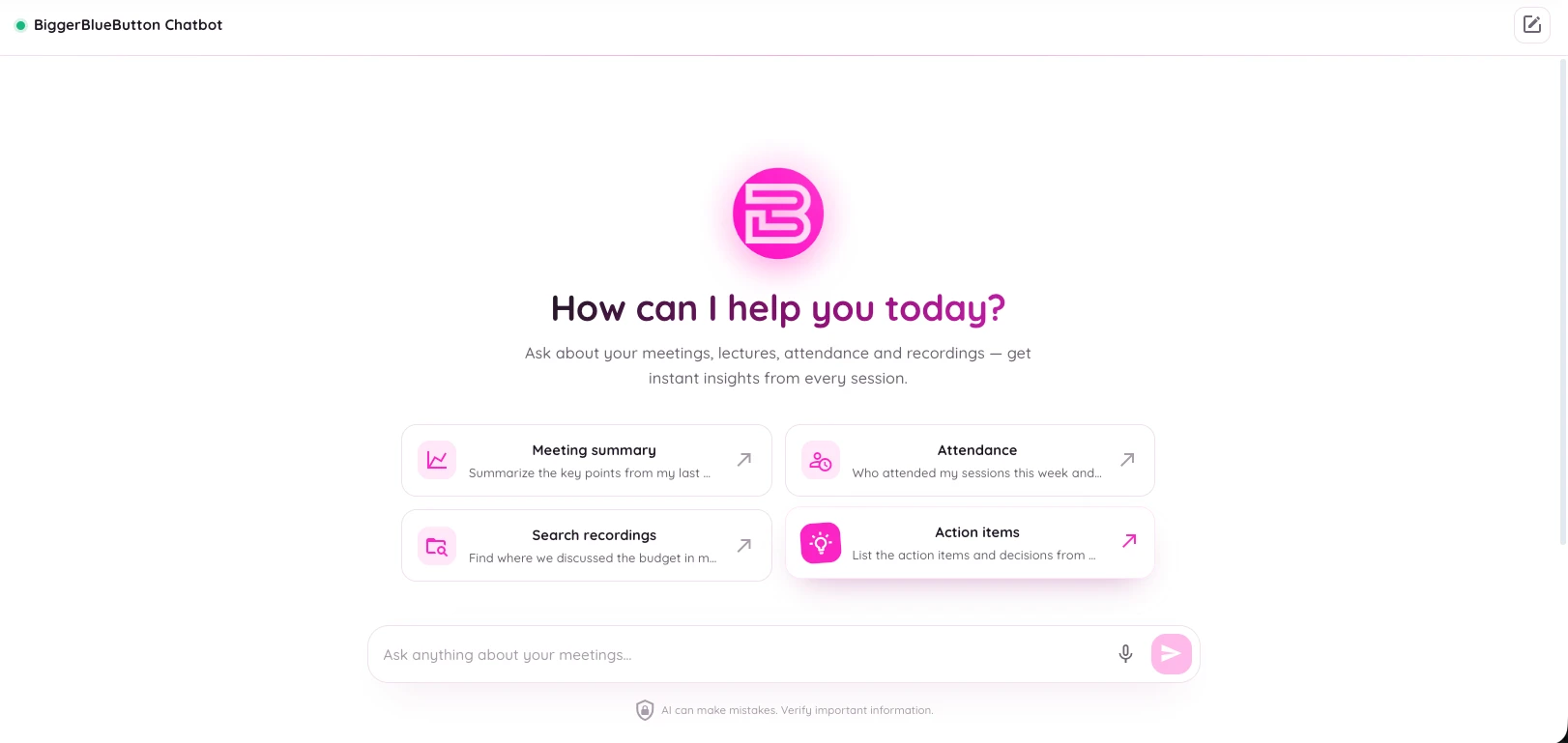
AI chatbot

Ask questions about your meetings, recordings and attendance, and get answers in seconds.

Need a hand?

We are here at every step

Stuck on a step? Our guides cover the details, and our team is happy to walk you through the rest.

Biggerbluebutton

Ready for step one?

Create your free account now. It takes less than a minute.

  • Free plan, forever
  • 7-day free trial on paid plans
  • GDPR-ready hosting
Chat on WhatsApp